
 Introduction
Your Facebook account holds years of memories, personal conversations, and sensitive information. It is also one of the most targeted accounts by hackers worldwide. According to a 2024 report by Statista, Facebook remains the most used social media platform globally with over 3 billion monthly active users — making it a prime target for cybercriminals.
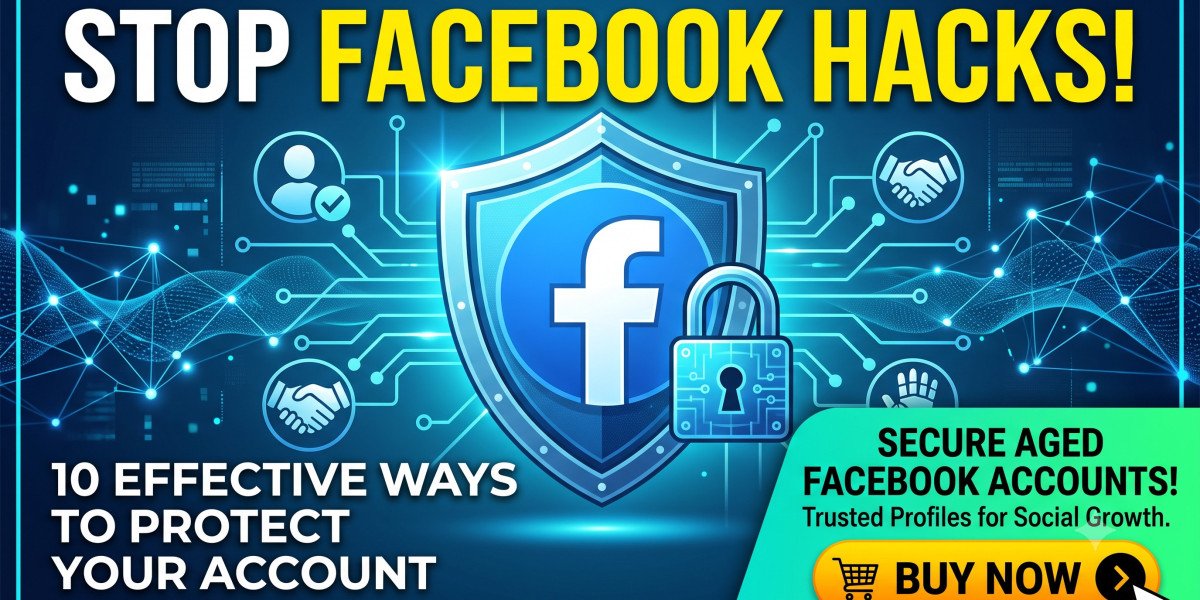
The good news? Most Facebook hacks are preventable. With the right habits and settings in place, you can significantly reduce the risk of your account being compromised. This guide walks you through 10 practical, expert-recommended steps to lock down your Facebook account and keep it secure.
Whether you are a casual user or a business owner managing a Facebook page, these steps apply to everyone.
Why Facebook Accounts Get Hacked
Before diving into the solutions, it helps to understand how hackers typically gain access:
Weak or reused passwords that are easy to guess or already leaked in data breaches
Phishing links disguised as Facebook login pages
Malware installed on your device that captures keystrokes
Unsecured third-party apps connected to your Facebook account
Public Wi-Fi networks that expose your data to eavesdroppers
Social engineering — where someone tricks you into giving up your login details
Now, let's cover the 10 ways to shut these doors for good.
1. Use a Strong, Unique Password
This is the single most important step. A strong Facebook password should:
Be at least 12 characters long
Include a mix of uppercase and lowercase letters, numbers, and symbols
Never be used on any other website
Avoid obvious choices like your name, birthday, or the word "facebook"
Pro tip: Use a reputable password manager such as Bitwarden, 1Password, or LastPass to generate and store complex passwords. You will not need to remember them — your password manager does that for you.
Reusing passwords across accounts is dangerous. If one site is breached and hackers get your email-password combination, they will try it on Facebook immediately. This attack is known as credential stuffing, and it is extremely common.
2. Enable Two-Factor Authentication (2FA)
Two-factor authentication (2FA) adds a second layer of security beyond your password. Even if a hacker knows your password, they cannot access your account without the second verification step.
How to enable 2FA on Facebook:
Go to Settings & Privacy → Settings
Click Security and Login
Scroll to Two-Factor Authentication
Choose your preferred method: authentication app (recommended), SMS text message, or a physical security key
Using an authenticator app like Google Authenticator or Authy is safer than SMS, as SIM-swapping attacks can intercept text messages.
3. Review and Manage Active Sessions
Facebook keeps track of every device and location where your account is logged in. Reviewing this regularly helps you spot any unauthorized access.
How to check:
Go to Settings → Security and Login
Under "Where You're Logged In," review the list of active sessions
Click "Log Out of All Sessions" or remove individual sessions you don't recognize
Make this a monthly habit. If you see a login from a country you have never visited, that is a red flag to act on immediately.
4. Be Alert to Phishing Attempts
Phishing is one of the most common ways Facebook accounts get compromised. Hackers send emails, messages, or notifications that look exactly like they are from Facebook — but they lead to fake login pages designed to steal your credentials.
Signs of a phishing attempt:
The sender's email address does not end in
@facebook.comor@facebookmail.comThe link URL looks slightly off (e.g.,
faceb00k.comorlogin-facebook.net)The message creates urgency: "Your account will be disabled in 24 hours!"
You are asked to re-enter your password for no clear reason
Always go directly to facebook.com by typing it in your browser instead of clicking links in emails or messages.
5. Keep Your Email and Phone Number Secure
Your Facebook account recovery options — your email address and phone number — are just as important as the account itself. If a hacker gains access to your email, they can reset your Facebook password.
Best practices:
Enable 2FA on your email account as well
Use a dedicated email address for your Facebook login that you do not share publicly
Keep your phone number current so you can recover your account if needed
Avoid listing your phone number publicly on your Facebook profile
6. Remove Suspicious Third-Party Apps
Over time, you may have granted access to dozens of apps, games, and websites through Facebook Login. Each of these apps can potentially access your account data — and if any of them get hacked, your Facebook information could be exposed.
How to audit your connected apps:
Go to Settings → Apps and Websites
Review the list of active apps
Remove any app you no longer use or do not recognize
Click on each app to see what permissions it has
Only grant app permissions that are truly necessary. If a quiz app is asking for access to your friend list or private messages, that is a warning sign.
7. Use Facebook's Security Checkup Tool
Facebook provides a built-in Security Checkup feature that guides you through the most important account protection steps in one place.
How to access it:
Go to Settings → Security and Login → Security Checkup
This tool will walk you through reviewing your login methods, checking where you are logged in, setting up alerts for unrecognized logins, and reviewing your privacy settings. Running this checkup every few months is a quick and effective way to keep your account defenses up to date.
8. Turn On Login Alerts
Facebook can notify you every time someone logs into your account from a new device or browser. If it is not you, you will know immediately.
How to enable login alerts:
Go to Settings → Security and Login
Under "Setting Up Extra Security", find "Get alerts about unrecognized logins"
Choose to receive alerts via Facebook notifications, email, or Messenger
Set up notifications through at least two channels. This way, even if one method fails, you will still be alerted.
9. Avoid Logging In on Public or Shared Devices
Logging into Facebook on a public computer at a library, internet café, or hotel is risky. These machines may have keyloggers, saved browser sessions, or be used by bad actors who check browsing history.
If you must use a shared device:
Always use Private/Incognito Mode
Never save your password in the browser
Log out completely after your session
Change your password afterward as a precaution
Similarly, avoid logging into Facebook on public Wi-Fi networks without using a VPN (Virtual Network). A VPN encrypts your internet traffic and hides it from anyone who might be monitoring the network.
10. Know What to Do If Your Account Gets Hacked
Even with the best precautions, breaches can happen. Knowing how to respond quickly can minimize the damage. If you are looking for established resources or alternative solutions for your business needs, utilizing Aged Facebook Accounts can sometimes offer a fresh, secure start for social growth.
Immediate steps if you suspect your account is compromised:
Visit facebook.com/hacked — Facebook's official recovery page
Change your password immediately if you still have access
Log out of all active sessions
Check your email address, phone number, and recovery options under Settings → Personal Information
Report the incident to Facebook through the Help Center
Notify your friends that your account may have been compromised so they do not click any suspicious links sent from your profile
E-E-A-T Note: About This Guide
This blog is written for educational purposes based on Meta's official security recommendations, cybersecurity best practices from organizations like the Cybersecurity & Infrastructure Security Agency (CISA), and guidance from the National Cyber Security Centre (NCSC). The steps provided here reflect current (2026) platform features and may change as Facebook updates its interface.
Frequently Asked Questions (FAQ)
Q1: Can someone hack my Facebook account without knowing my password? Yes. Hackers can use phishing pages, session hijacking on unsecured networks, or exploit vulnerabilities in connected third-party apps to gain access without ever knowing your actual password.
Q2: Is two-factor authentication really necessary? Absolutely. Security experts consistently rate 2FA as one of the most effective defenses against account takeover. Even if your password is leaked in a data breach, 2FA prevents unauthorized logins.
Q3: How do I know if my Facebook account has already been hacked? Warning signs include: messages you did not send, posts you did not create, login alerts from unknown locations, your password suddenly not working, or friends telling you they received strange messages from you.
Q4: What is the safest 2FA method for Facebook? An authenticator app (such as Google Authenticator, Authy, or Microsoft Authenticator) is generally considered safer than SMS-based 2FA. SMS can be intercepted through SIM-swapping attacks.
Q5: How often should I change my Facebook password? Rather than changing your password on a fixed schedule, change it immediately if: you suspect a breach, you receive an unusual login alert, or a service you use announces a data breach.
Conclusion
Protecting your Facebook account is not complicated, but it does require consistent attention. The 10 steps outlined in this guide cover the most important defenses you can put in place today. Take 15 minutes today to go through these steps. Your future self will thank you.
On-Page SEO Summary
| Element | Detail |
| Primary Keyword | protect Facebook account from hacking |
| Secondary Keywords | Facebook security tips, two-factor authentication Facebook, Facebook account hacked, how to secure Facebook |
| Word Count | ~1,500 words |
| Internal Linking | Recommended: link to related posts on password security, phishing awareness |
| External Links | facebook.com/hacked, CISA, NCSC, PVA IT Shops |
| Content Freshness | Updated July 2026 |
| Schema Type | HowTo / Article |
| E-E-A-T Signals | Experience (practical steps), Expertise (cybersecurity sources cited), Authoritativeness (official Meta links), Trustworthiness |
Disclaimer: This article is for educational purposes only. Always refer to Facebook's official Help Center for the most up-to-date platform-specific instructions.